
A VPN can make a noticeable difference to the way you manage your IPTV connection, particularly when privacy, network routing, or connection stability is important. But many users still wonder how to use VPN with IPTV UK without making their streaming setup unnecessarily complicated.
The good news is that the basic process is straightforward. You install a reputable VPN, connect to an appropriate server, and then open your IPTV application. From there, a few simple adjustments can help you find a setup that works well for your internet connection and device.
This guide covers the practical side of VPN and IPTV use, including installation, server selection, buffering problems, device compatibility, and common mistakes to avoid.
What Is a VPN and Why Use It With IPTV?
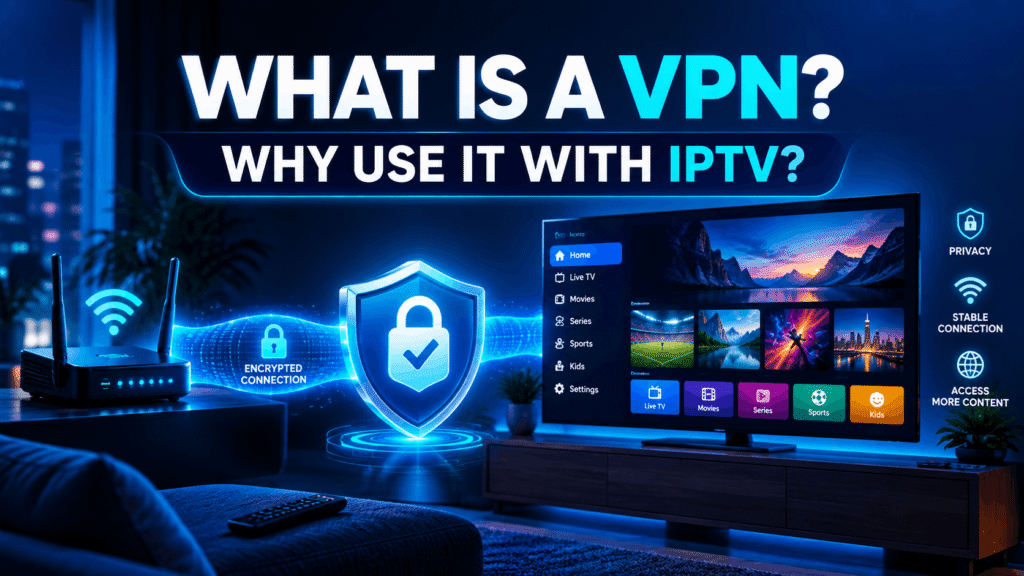
Before looking at how to use VPN with IPTV UK, it helps to understand what a VPN actually does.
A Virtual Private Network creates an encrypted connection between your device and a VPN server. Instead of connecting directly to online services through your normal internet route, your traffic is sent through the VPN.
This can provide several benefits for IPTV users.
Improved Privacy
A VPN can add an extra layer of privacy by encrypting your internet traffic. This can be particularly useful when using shared networks, public Wi-Fi, or other connections where you want additional protection.
Alternative Network Routing
Sometimes a streaming connection may experience poor routing between your internet provider and a particular server. A VPN can route traffic through a different network path.
However, a VPN is not a guaranteed solution for every buffering problem. If your internet connection is slow or the streaming server is overloaded, changing the route may not solve the underlying issue.
Flexible Server Locations
Many VPN providers operate servers in multiple countries. This gives users more options when selecting a connection.
It is important to remember that changing your VPN location does not automatically give you legal access to content that is restricted or unavailable in your region. Always use services that have the appropriate rights to distribute their content.
How to Use VPN with IPTV UK Step by Step
If you are learning how to use VPN with IPTV UK, you can usually complete the basic setup in a few minutes.
Step 1: Choose a Reliable VPN
Start by selecting a reputable VPN provider that supports your streaming device.
For IPTV, consider looking for:
- Fast and stable connections
- Multiple server locations
- Applications for your device
- Strong encryption
- A transparent privacy policy
- Reliable customer support
- Enough bandwidth for HD and 4K streaming
Speed is particularly important. A VPN may offer excellent privacy features, but if its servers are consistently congested, your streaming experience may suffer.
Step 2: Install the VPN Application
Download the VPN application from the provider’s official website or the official application store for your device.
Depending on your setup, VPN applications may be available for:
- Android TV
- Fire TV devices
- Android smartphones and tablets
- Windows
- macOS
- Compatible Smart TVs
- Supported routers
Avoid downloading VPN software from unknown third-party websites. Using official sources is a safer way to ensure that you are installing the legitimate application.
Step 3: Sign In and Select a Server
Open the VPN application and sign in to your account.
You will normally see a list of available locations. If your IPTV service is designed around UK access, you can initially test a UK server.
Select a server and press Connect.
Wait until the application confirms that the VPN connection is active before opening your IPTV player.
Step 4: Open Your IPTV Player
Once the VPN is connected, launch your IPTV application.
You generally do not need to change the IPTV application itself. The VPN operates at the device or network level, depending on your configuration.
Start a channel or video and watch it for several minutes.
Pay attention to:
- Loading speed
- Picture quality
- Buffering
- Audio synchronization
- Connection stability
If playback remains smooth, your basic setup is complete.
How to Use VPN with IPTV UK on Different Devices
The exact process can vary depending on the device you use.
Android TV and Fire TV
Android TV and Fire TV devices are popular choices because many major VPN providers offer dedicated applications for them.
The general setup looks like this:
- Open the device’s application store.
- Search for your VPN provider.
- Install the official application.
- Sign in.
- Select a server.
- Connect to the VPN.
- Open your IPTV application.
Some VPN applications also include an auto-connect feature. This can be useful if you want the VPN to connect automatically whenever your device starts.
Windows PC
If you watch IPTV on a Windows computer, install the VPN application and sign in.
Connect to your preferred server before opening your IPTV software or browser-based player.
One advantage of this approach is that the VPN can protect other internet traffic from the same computer while it is connected.
Smart TV
Smart TV compatibility depends on the television’s operating system and the VPN provider.
If your television does not support the VPN application directly, you may be able to use a compatible streaming device or configure the VPN through a supported router.
Router configuration can protect several devices at once, although it is more technical than installing an application directly.
Can a VPN Stop IPTV Buffering?
Many people searching for how to use VPN with IPTV UK are actually trying to solve buffering problems.
A VPN can sometimes help, but it is not a magic solution.
Buffering can be caused by:
- Slow internet speeds
- Weak Wi-Fi
- Router problems
- Network congestion
- Poor network routing
- An overloaded streaming server
- VPN server congestion
- High-resolution video
- Device performance limitations
If your IPTV provider’s server is overloaded, changing your VPN will not necessarily fix the problem.
Test Different VPN Servers
If your stream becomes slower after connecting to the VPN, try another server.
For example, you could test:
UK Server A → UK Server B → Another Nearby Server
Watch the same stream for several minutes with each connection and compare the results.
This simple test can help you determine whether the issue is related to a particular VPN server.
How to Use VPN with IPTV UK for Better Streaming Performance
Understanding how to use VPN with IPTV UK is only the first step. Your configuration also matters.
Use Ethernet When Possible
If your Smart TV or streaming device is close to your router, an Ethernet connection can provide a more consistent connection than Wi-Fi.
Wi-Fi interference, distance, walls, and other connected devices can all affect wireless performance.
Choose a Nearby Server
A nearby VPN server will often provide lower latency than a server located much farther away.
That is not guaranteed in every situation, but it is a sensible starting point when testing different connections.
Avoid Unnecessary Advanced Features
Some VPN applications offer advanced privacy features such as multi-hop connections or additional filtering.
These can be useful for particular privacy requirements, but they may add extra network overhead.
For streaming, start with a straightforward VPN connection and only enable additional features when you actually need them.
Compare VPN and Non-VPN Connections
If you notice buffering, perform a simple comparison.
- Watch the stream without the VPN.
- Connect to VPN Server A.
- Test the same stream.
- Connect to VPN Server B.
- Compare playback.
This gives you a much clearer idea of where the problem is coming from.
What If IPTV Stops Working When the VPN Is Connected?
Sometimes an IPTV application may behave differently after a VPN connection is established.
If you are researching how to use VPN with IPTV UK and your application stops loading after activating the VPN, try a few basic troubleshooting steps.
Change the VPN Server
The first thing to try is another server. Different servers use different IP addresses and may have different levels of congestion.
Restart the IPTV Application
Close the IPTV application completely and reopen it after connecting to the VPN.
Restart Your Device
A complete restart can clear temporary network or application issues.
Try Another VPN Protocol
Some VPN providers allow users to choose between different connection protocols. Switching protocols may affect speed, latency, and compatibility.
Test Your Internet Connection
Disconnect the VPN and test your normal internet connection.
If the stream continues to have problems without the VPN, the issue may be related to your broadband connection or the streaming service rather than the VPN.
If an IPTV provider specifically prohibits VPN connections, follow its terms rather than attempting to bypass those restrictions.
Is Using a VPN With IPTV Legal in the UK?
The VPN technology itself is generally used for legitimate purposes such as privacy and network security.
However, the legality of the content you access is a separate issue.
A VPN does not make unauthorized access to copyrighted content legal. IPTV users should therefore choose services that have the appropriate rights or licences to distribute the channels and content they provide.
Before subscribing to an IPTV service, check its terms, licensing information, and reputation.
Using a VPN for privacy does not remove your responsibility to comply with applicable laws and service terms.
Common Mistakes IPTV Users Should Avoid

When learning how to use VPN with IPTV UK, it is easy to focus entirely on the VPN and overlook other parts of the setup.
Choosing a VPN Based Only on Price
The cheapest option is not necessarily the most suitable for streaming.
Look at server performance, supported devices, privacy policies, connection limits, and customer support before making a decision.
Assuming a VPN Always Makes Streaming Faster
A VPN introduces another connection between your device and the internet.
Depending on the server and network conditions, this can sometimes improve routing, but it can also reduce speed.
Ignoring Your Wi-Fi Connection
If your router is far away from your Smart TV, the VPN may not be the real cause of buffering.
Try improving your Wi-Fi signal or using Ethernet before changing your entire streaming setup.
Using a Distant VPN Server
A server on the other side of the world may introduce additional latency.
Start with a nearby location and compare performance before experimenting with more distant servers.
FAQ
Can I use a VPN with IPTV on a Smart TV?
Yes, provided your Smart TV platform supports the VPN application. If it does not, you may be able to use a compatible streaming device or configure a supported router.
Should I use a UK VPN server for IPTV?
A UK server can be a reasonable starting point for services intended for UK connections. However, the most suitable server depends on your location, VPN provider, network routing, and the IPTV service itself.
Will a VPN make IPTV faster?
Not necessarily. A VPN may improve routing in some circumstances, but it can also introduce additional latency. Your internet speed, VPN server, and IPTV server all affect performance.
Can a VPN prevent buffering?
A VPN may help with certain routing problems, but it cannot guarantee buffer-free playback. A stable internet connection and reliable streaming infrastructure remain essential.
Can I use one VPN account on multiple devices?
Many VPN providers allow multiple simultaneous connections, although the exact number depends on the provider and subscription plan.
What should I do if my IPTV stops working with a VPN?
Try another VPN server, restart your IPTV application, test another VPN protocol, and compare the connection with the VPN disabled. If the provider does not allow VPN connections, follow its terms of service.
Conclusion
Knowing how to use VPN with IPTV UK can help you build a more private and flexible streaming setup without making the process unnecessarily complicated.
The basic approach is simple: choose a reputable VPN, install its official application, connect to a suitable server, and then launch your IPTV player.
For better results, pay attention to server location, internet speed, Wi-Fi quality, device performance, and VPN server congestion. If buffering occurs, test different configurations rather than assuming the VPN is automatically responsible.
Most importantly, choose IPTV services that are authorized to provide their content and use your VPN in accordance with applicable laws and service terms.
A reliable internet connection, properly configured VPN, and legitimate IPTV service can work together to create a smoother and more dependable streaming experience.