
An IPTV app that suddenly stops working, freezes during playback, or refuses to open can turn a relaxing evening into a frustrating troubleshooting session. Sometimes, the problem is your internet connection. In other cases, the app simply needs an update.
Knowing how to update IPTV app on Smart TV can help you fix compatibility issues, access available features, and keep your streaming setup running smoothly. However, the exact process depends on your television’s operating system and how you installed the application.
Whether you use a Samsung Smart TV, an LG television, or an Android TV device, this guide explains how to check for updates, install the latest available version, and solve common problems without unnecessarily resetting your television.
Why You Should Learn How to Update IPTV App on Smart TV
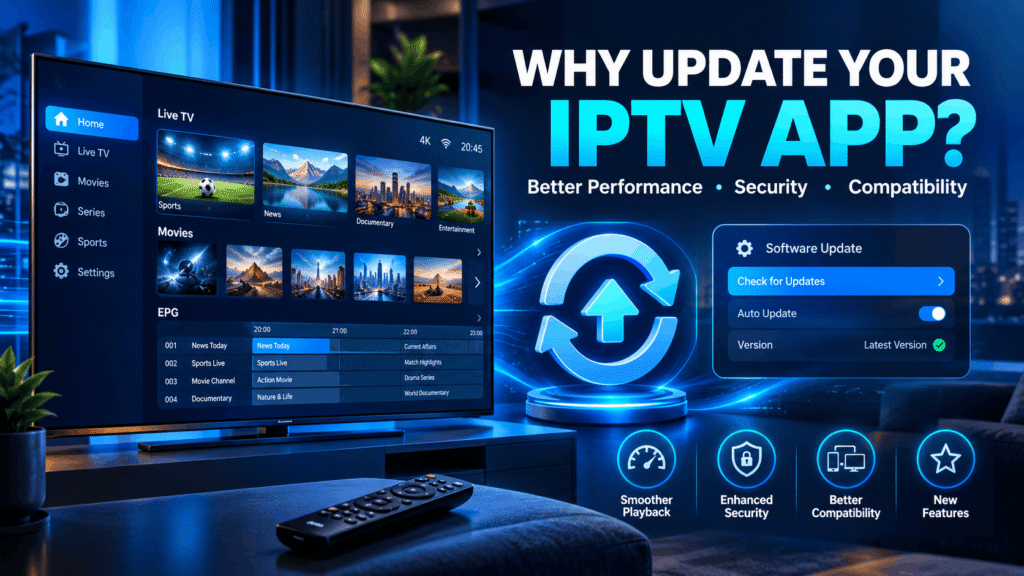
App updates are not just about adding new features. They can also address technical issues that affect everyday streaming.
Here are several reasons to keep your IPTV application up to date:
- Improved compatibility: Newer versions may work better with updated TV software and supported streaming formats.
- Bug fixes: Updates can resolve crashes, unexpected shutdowns, and navigation problems.
- Security improvements: Depending on the developer, an update may include important security fixes.
- Better usability: Some releases improve playlist management, playback controls, or electronic programme guides (EPGs).
- Performance improvements: An update may reduce certain playback problems, although it cannot guarantee buffer-free streaming.
Remember that updating an application will not automatically improve your
speed or fix every streaming issue. If a service has server problems, an application update alone will not solve them.
How to Update IPTV App on Smart TV: Step-by-Step Instructions
Before starting, identify your TV’s operating system and check whether you installed the IPTV app through its official app store or another supported method.
1. Update an IPTV App on Samsung Smart TV
If you are learning how to update IPTV app on Smart TV, start by checking whether your Samsung model supports the application through its official app store.
Follow these steps:
- Turn on your Samsung Smart TV and connect it to the internet.
- Press the Home button on your remote.
- Open Apps.
- Look for the settings icon within the Apps screen.
- Enable Auto Update if the option is available.
If automatic updates are enabled, supported apps may update when new versions become available.
For manual updates, open the app store and check whether your model offers an update option for the installed application. On some Samsung TVs, the store handles app updates automatically rather than providing a separate manual update button.
Important: Not every IPTV application is available for every Samsung TV model. If you cannot find your app, check its official compatibility information before attempting to install another version.
2. Update an IPTV App on LG Smart TV
The process for how to update IPTV app on Smart TV using LG webOS depends on your model and the app’s availability in the LG Content Store.
To check for an update:
- Press the Home button on your LG remote.
- Open the LG Content Store or Apps, depending on your model.
- Search for your installed IPTV application.
- Open its store page.
- If an Update option appears, select it and allow the installation to finish.
If no update option is displayed, the app may already be current, or an update may not be available for your television.
You should also check for TV software updates under Settings > Support > Software Update, although the exact path can differ between webOS versions.
Avoid downloading unofficial installation files from unfamiliar websites. LG TVs do not support every Android application, and an APK file intended for Android will not install directly on webOS.
3. Update IPTV Apps on Android TV and Google TV
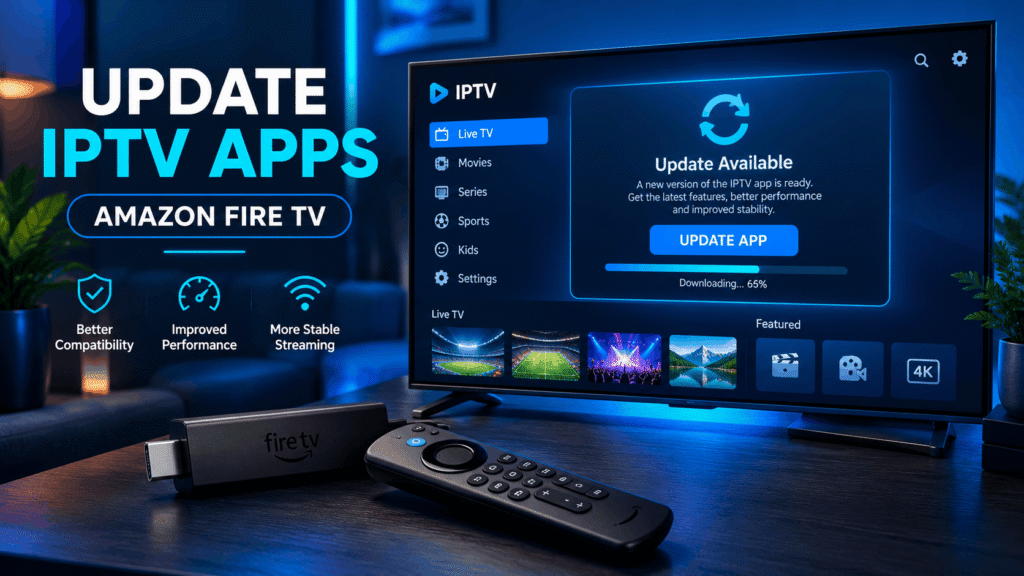
Android TV users can usually learn how to update IPTV app on Smart TV by opening the Google Play Store and checking for pending updates.
Here’s what to do:
- Open the Google Play Store on your television.
- Select your profile icon, if shown.
- Open Manage apps and games or the available app-management section.
- Check for pending updates.
- Select your IPTV app and choose Update, if available.
Menu names can vary depending on your device manufacturer and software version.
You can also enable automatic updates in the Play Store settings, where supported.
If you installed the application using an APK, the Play Store might not manage its updates. In that case, consult the app developer’s official instructions and confirm that the new version supports your device.
Before installing an APK manually, verify its source, compatibility, and authenticity. Unofficial files can contain unwanted software or create security risks.
4. Update IPTV Apps on Amazon Fire TV
Although Fire TV devices are not built into every Smart TV, many users connect them to televisions to access streaming applications.
If you use a connected Fire TV device, the steps for how to update IPTV app on Smart TV may differ depending on the app’s installation method.
To check your settings:
- Open Settings.
- Select Applications.
- Open Appstore or the relevant app-management settings, depending on your device.
- Check that automatic updates are enabled.
For an individual app, navigate to the application through the Fire TV interface and look for an available update option. The exact process depends on the Fire OS version and how the app was installed.
If the app was sideloaded, you may need to obtain a newer version from the developer’s official source and follow its installation instructions.
Do not uninstall an application before checking whether you can reinstall it. Some apps may no longer be available in your region or through the original distribution channel.
5. Protect Your Settings Before Updating
Before deciding how to update IPTV app on Smart TV, check whether the update could affect your saved playlists or account settings.
Most official app-store updates are designed to preserve existing app data. However, this is not guaranteed, especially when changing installation methods or replacing an application with a different version.
Before updating, consider these precautions:
- Save your configuration: Keep a secure record of settings you may need to restore.
- Check playlist access: Confirm that you can access your playlist URL or provider account details.
- Review the update source: Use the official app store or the developer’s verified distribution channel.
- Avoid unnecessary deletion: Updating an existing installation is usually preferable to uninstalling it first.
- Check compatibility: Make sure the new version supports your television and current operating system.
Never share your IPTV account password or private playlist URL with an unknown third party offering update assistance.
6. Restart Your TV After Updating
Even when an update installs successfully, the application may not work correctly until the television reloads its software.
After updating:
- Close the IPTV application.
- Restart your television.
- Wait for the TV to reconnect to your network.
- Open the app again.
- Test the menus and play a short video.
If the app still behaves strangely, perform a full power cycle by turning off the TV and disconnecting it from the power supply for approximately 30–60 seconds, provided the manufacturer recommends this approach.
Restarting can clear temporary glitches, but it will not repair an incompatible app or an outage affecting your streaming provider.
7. Check Your Smart TV’s Software Version
Sometimes, an IPTV app requires a newer operating system than your television currently runs.
To check for TV software updates, open Settings and look for Software Update, System Update, or a similar option.
Install available updates using the manufacturer’s instructions. Keep the television connected to reliable power and avoid interrupting the installation.
Older televisions may no longer receive operating-system updates. If your preferred IPTV app has dropped support for your model, you may need to use a compatible external streaming device instead.
What to Do If Your IPTV App Will Not Update
If you cannot complete the process of how to update IPTV app on Smart TV, check your internet connection, available storage, and device compatibility.
Check Your Internet Connection
Open another streaming application or test the TV’s network connection.
If other services also fail, restart your router and television. For demanding streams, a stable connection is often more important than simply having a high advertised download speed.
Free Up Storage Space
Some Smart TVs need available storage to download and install updates.
Remove unused applications if your television is running low on space. Avoid deleting system applications or files you do not recognise.
Check Regional and Device Compatibility
An application may be unavailable because of your country, television model, operating system, or the developer’s distribution choices.
Check the official app listing and compatibility documentation before looking for an alternative installation method.
Clear the Cache, If Supported
Some Android TV devices allow you to clear an app’s temporary cache.
Navigate to Settings > Apps > Your IPTV App > Clear Cache, if these options are available.
Be careful not to select Clear Data unless necessary. Clearing data can remove local settings, login information, and stored playlists.
Contact the App Developer or Service Provider
If the app is current but playlists fail to load, the issue may relate to your subscription, account configuration, playlist format, or provider’s servers.
Ask the appropriate support team to check the problem before repeatedly reinstalling the application.
Tips for Better IPTV Performance on Smart TV
Understanding how to update IPTV app on Smart TV is useful, but reliable streaming also depends on your network, television, application, and streaming service.
Follow these practical habits:
- Enable automatic updates when supported.
- Install TV firmware updates from the manufacturer.
- Use a reliable Wi-Fi connection or Ethernet where available.
- Close applications that are no longer needed.
- Keep sufficient storage space available.
- Use an IPTV player compatible with your television.
- Choose services that clearly explain their content rights, supported devices, and customer-support arrangements.
For HD streaming, around 5–10 Mbps per stream is a common starting point. For 4K, approximately 25 Mbps or more is often recommended. Actual requirements vary by compression, service, and network conditions. Other household devices may also need additional bandwidth.
If your app is up to date but live channels continue to buffer, investigate your connection and the service’s performance rather than assuming another update will fix everything.
Frequently Asked Questions
1. How do I update my IPTV app safely?
To understand how to update IPTV app on Smart TV safely, open your television’s official app store, check for available updates, and follow the developer’s instructions. Avoid unfamiliar downloads.
2. Can I update my IPTV app without uninstalling it?
Yes. When an update is available through the official app store, you can generally install it directly without removing the existing application. Your settings are often preserved, although this depends on the app and update method.
3. Why is my IPTV app not available in the Smart TV app store?
The app may not support your TV model or operating system, or it may be unavailable in your region. Check the developer’s official compatibility information before trying another installation method.
4. Will updating my IPTV app stop buffering?
Not necessarily. An update may fix software bugs, but buffering can also result from slow internet, Wi-Fi interference, overloaded servers, or playback settings. Troubleshoot the connection and service if the problem continues.
5. Is it safe to download IPTV app updates from third-party websites?
It is safer to use your TV’s official app store or the developer’s verified source. Unofficial downloads may be outdated, incompatible, modified, or malicious. Avoid entering account details into unfamiliar applications.
6. How often should I update my IPTV app?
Check for updates periodically or enable automatic updates when available. Install important security and compatibility updates promptly, but always confirm that the release is intended for your device.
Conclusion: Keep Your Smart TV Ready for Reliable Streaming
Once you understand how to update IPTV app on Smart TV, you can maintain compatibility, access available improvements, and troubleshoot common application problems. The process is usually straightforward once you identify whether your television uses Samsung’s app platform, LG webOS, Android TV, Google TV, or a connected Fire TV device.
Start with the official app store, install any available updates, restart your device, and test playback. If the problem remains, check your internet connection, available storage, app compatibility, and provider status before attempting a complete reinstall.
For a more dependable viewing experience, combine an up-to-date application with a stable network and a streaming service that provides transparent subscription terms, appropriate content rights, and responsive support.
Looking for a more reliable IPTV viewing experience? Explore Streamora IPTV to learn about available streaming options, supported devices, and service features before choosing a subscription.